
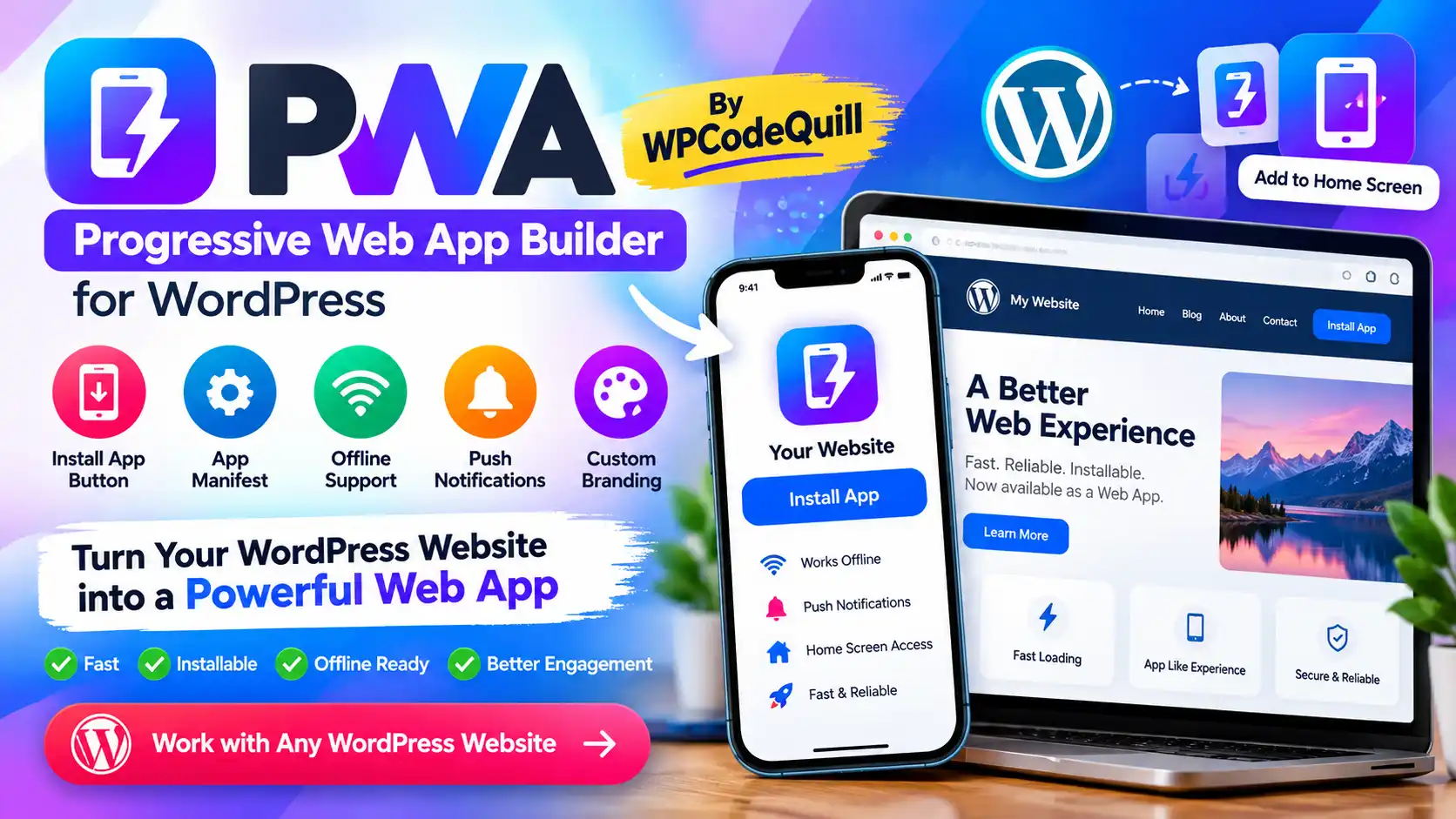
PWA – Progressive Web App Builder: A Complete Guide for WordPress
People increasingly expect websites to feel fast, mobile-friendly, and easy to access. On a smartphone, many visitors prefer an experience that opens quickly, fits the screen naturally, and can be launched from the home screen without repeatedly typing a web address. This is one reason Progressive Web Apps, commonly called PWAs, have become an important part of modern web development.
A PWA – Progressive Web App Builder can simplify the process of adding PWA functionality to a website. Instead of manually creating a web app manifest, configuring installation behavior, registering service workers, and managing several pieces of browser functionality yourself, a suitable WordPress solution can provide an administration interface for the parts you need.
For WordPress website owners, this approach can be particularly useful. You may already have a working website with pages, posts, products, users, forms, and other content. Turning that existing website into a more app-like experience does not necessarily mean rebuilding everything as a native Android or iOS application.
WPCodeQuill's PWA – Progressive Web App Builder is a relevant example. Its current product page describes a free WordPress plugin with an Install App button, basic PWA support, manifest generation, WordPress/PHP compatibility, and dashboard controls. Its listed Pro features include additional PWA controls, offline support, push notifications, and custom app branding.
This guide explains what a Progressive Web App is, how a PWA works, what a WordPress PWA builder does, the benefits and limitations to understand, how to configure a PWA, common mistakes, SEO considerations, and how to decide whether a PWA approach is appropriate for your website.
What Is a Progressive Web App?
A Progressive Web App is a web application that uses modern web technologies to provide an app-like experience while remaining a website. A PWA can still be accessed through a normal web URL, but supporting browsers and operating systems can provide additional capabilities such as installation, standalone display, offline functionality, and other integrations.
According to MDN's current PWA documentation, PWAs are still websites, but they can use technologies such as a web app manifest and service workers to provide additional app-like behavior.
This distinction is important. A PWA is not automatically the same thing as a native Android or iOS application.
A simplified comparison looks like this:
| Type | How It Works | Typical Distribution |
|---|---|---|
| Traditional Website | Runs primarily through a web browser | Web URL |
| PWA | Website enhanced with app-like web capabilities | Web URL and supported installation methods |
| Native Mobile App | Built specifically for a mobile operating system | App stores or direct distribution |
The major advantage of the PWA approach is that your website can remain the foundation. You can progressively enhance it rather than automatically starting an entirely separate mobile application project.
What Is a PWA – Progressive Web App Builder?
A PWA – Progressive Web App Builder is a tool, platform, or plugin that helps a website owner configure Progressive Web App functionality without manually implementing every component.
For a WordPress website, a PWA builder can potentially help with tasks such as:
- Creating or configuring a web app manifest.
- Defining the application name.
- Configuring a short application name.
- Setting the application icon.
- Defining the start URL.
- Choosing an application display mode.
- Adding an installation call-to-action.
- Configuring service-worker functionality where supported by the solution.
- Providing offline capabilities.
- Configuring push notifications in advanced implementations.
- Providing WordPress administration controls.
The amount of functionality varies considerably between products. A basic plugin may only configure a manifest and installation interface, while an advanced solution can provide offline caching, notifications, branding controls, and other app-related features.
That is why it is useful to examine the actual feature list of a product instead of assuming that every plugin described as a PWA builder provides identical functionality.
Why Use a PWA for a WordPress Website?
A WordPress website can already work well on mobile devices. A PWA is therefore not something every website automatically needs.
The value comes from specific app-like capabilities.
1. Installable Website Experience
One of the defining characteristics of a PWA is that it can be installed on supported devices and launched from an operating-system interface such as a home screen, taskbar, or application area.
MDN explains that an installable PWA can appear to users like an application and can be launched directly from the operating system rather than requiring the visitor to navigate to the website manually each time.
This can be useful for websites where visitors return frequently.
2. App-Like Display
A web app manifest can define how the web application should appear when launched. For example, the display member can be configured for modes such as standalone, allowing the application to open without the normal browser interface surrounding the page.
The result can feel more like an application while the underlying content remains web-based.
3. Home-Screen Access
For mobile users, placing an application icon on the home screen can reduce the number of steps required to return to a website.
This is particularly relevant for:
- News websites.
- Blogs.
- Online tools.
- Educational websites.
- Membership platforms.
- Shopping websites.
- Community websites.
- Web applications.
4. Offline Experiences
Service workers can be used to cache resources and support offline or limited-connectivity experiences. However, offline functionality is not automatic merely because a website has a manifest.
MDN specifically notes that a service worker is not required for installation itself, but service workers are commonly used to provide offline experiences.
This distinction matters when evaluating a PWA plugin. A plugin that creates an installable application may not necessarily provide a complete offline architecture.
5. Push Notifications
Advanced PWAs can use web push technology to deliver notifications to users who have granted the appropriate permission.
Push notifications can be useful for legitimate use cases such as new articles, account events, messages, reminders, or important updates. They should not be used excessively because unwanted notifications can quickly become annoying and cause users to disable permissions. MDN also recommends using push carefully because notifications can distract users.
Important Components of a Progressive Web App
Understanding the underlying technology makes it easier to evaluate any PWA builder.
Web App Manifest
The web app manifest is a JSON file containing information about the web application. It can define details such as the application's name, icons, start URL, display mode, theme color, background color, shortcuts, and other capabilities.
MDN describes the manifest as the file that provides browsers with information needed to install and present a web application.
A simplified example can contain information similar to:
- Name: Full application name.
- Short name: Shorter name for constrained interfaces.
- Icons: Images used for application representation.
- Start URL: Page opened when the application launches.
- Display: Preferred application display mode.
- Theme color: Interface-related color.
- Background color: Background used in supported contexts.
For Chromium-based browsers, current MDN documentation identifies manifest members such as name or short_name, suitable 192px and 512px icons, start_url, and display or display_override among the installability requirements. HTTPS is also required for installability outside local development environments.
Service Worker
A service worker is a browser-managed script that can operate separately from the main page and can intercept network requests, manage caches, respond to events, and support background functionality.
For a PWA, service workers are especially important when you want offline functionality or certain background capabilities.
A poorly configured service worker can also cause problems. Old cached files can remain available after an update, which means visitors may temporarily see outdated content. Therefore, cache versioning and update strategies should be handled carefully.
HTTPS
Security is an important part of PWA deployment. Current MDN guidance states that an installable PWA needs to be served over HTTPS, except for local development environments such as localhost or 127.0.0.1.
For a production WordPress website, HTTPS should therefore be treated as a basic requirement rather than an optional enhancement.
What Can a WordPress PWA Builder Do?
Without a dedicated tool, a developer may need to work with PHP, JavaScript, JSON, browser APIs, WordPress hooks, manifest files, service-worker registration, caching rules, and other implementation details.
A WordPress PWA builder can move some of this work into the WordPress dashboard.
For example, WPCodeQuill's Web to App page currently lists the following free-version capabilities:
- Install App button.
- Basic PWA support.
- Built-in manifest generation.
- WordPress and PHP compatibility.
- Dashboard controls.
- Lightweight positioning.
- GPL licensing.
The same page currently lists additional Pro functionality including custom app icons, offline support, push notifications, advanced manifest controls, custom branding, splash screens, and premium support.
Feature availability can change as software develops, so users should always check the current product documentation before installation or purchase.
Web to App: A WPCodeQuill PWA Solution
If you are specifically looking for a Best Web App Builder by WPCodeQuill, the most directly relevant current product is PWA – Progressive Web App Builder by WPCodeQuill.
It is designed to help WordPress site owners add an app-like installation experience to an existing website. The product page describes an administration dashboard, manifest generation, an Install App button, and a free version that can be downloaded without purchasing the Pro version.
The important point is that a WordPress PWA plugin should complement your website rather than replace its underlying content structure.
Your posts, pages, products, navigation, forms, and other WordPress functionality should continue to serve visitors through normal web URLs.
The PWA layer then adds additional capabilities where the browser and device support them.
Free vs Advanced PWA Features
When choosing a free PWA plugin, it is useful to separate basic installation functionality from advanced application functionality.
| Feature | Basic PWA Setup | Advanced PWA Setup |
|---|---|---|
| Web App Manifest | Usually essential | Advanced customization |
| Install Button | Useful for basic installation UX | Custom installation experience |
| App Icon | Basic configuration | Custom branding and multiple assets |
| Standalone Display | Possible | More advanced configuration |
| Offline Support | Not necessarily included | Service-worker and caching strategy |
| Push Notifications | Not necessarily included | Requires notification and push infrastructure |
| Admin Controls | Basic settings | More detailed configuration |
WPCodeQuill's current free-versus-Pro comparison similarly distinguishes its basic free functionality from Pro features such as custom app icons, offline support, and push notifications.
Step-by-Step: How to Add PWA Features to WordPress
Step 1: Make Sure Your Website Uses HTTPS
Start by confirming that your WordPress website loads through HTTPS without certificate warnings.
HTTPS is required for production PWA installability, and it is also important for protecting normal website communication.
Step 2: Choose a PWA Plugin
Choose a WordPress PWA solution that provides the features your website actually needs.
If you only want an installable website with basic manifest functionality, a lightweight plugin may be enough. If you require offline caching, push notifications, advanced branding, or more detailed controls, examine whether those features are included in the version you plan to use.
Step 3: Install the Plugin
Install the plugin through the normal WordPress administration interface or the distribution method provided by the developer.
Before installing any plugin, keep a recent backup of your website. If you are performing a major website change, a backup and migration solution such as Migrate Quill can be useful for creating a backup or preparing for migration. Its current product page describes backup, restore, cloning, and migration functionality.
Step 4: Configure the Application Name
Choose an application name that matches your brand and website.
Avoid unnecessarily long names because application interfaces often have limited space.
Step 5: Configure Your Icon
Use a recognizable icon that works at small sizes. Your application icon should be visually distinct and represent your brand.
For production PWAs targeting Chromium-based installation requirements, appropriate 192px and 512px icon assets are among the requirements documented by MDN.
Step 6: Configure the Start URL
The start URL determines where users enter the web application after launching it.
For many websites, the homepage is a natural starting point. For a specialized web application, another page may make more sense.
MDN documents start_url as the URL recommended for launching the application after installation.
Step 7: Choose the Display Mode
If the plugin supports it, a standalone display mode can make the installed site feel more application-like by reducing the visible browser interface.
Test this carefully on actual devices because browser and operating-system behavior can differ.
Step 8: Add or Configure the Install Button
An install button can help visitors discover that the website can be installed.
However, do not force installation. The installation interface should explain the benefit and allow visitors to dismiss it easily.
Step 9: Test the Installation
Test your website using several devices and browsers.
- Android smartphone.
- Desktop Chrome or another Chromium-based browser.
- Microsoft Edge.
- Safari on supported Apple devices.
- Different screen sizes.
- Logged-in and logged-out sessions where relevant.
Installation behavior varies by browser and operating system. MDN notes that the installation interface and capabilities differ between platforms and browsers.
How to Test Whether Your PWA Is Working Correctly
Installing the application once is not enough. A good testing process should cover both technical behavior and user experience.
Check the Manifest
Confirm that the manifest loads successfully and contains the expected name, icons, start URL, display mode, and other settings.
Check the Install Experience
Visit the website in a supported browser and determine whether the installation option appears when the required conditions are satisfied.
Do not assume that every browser will display the same installation button or prompt.
Test Navigation
Open several pages from the installed experience. Check menus, links, forms, search, login, checkout, and other important interactions.
Test Cached Resources
If offline functionality is enabled, test what happens when connectivity disappears.
Do not promise users that the entire website works offline unless you have actually designed and tested the caching strategy to support it.
Test Updates
Publish a website change and check whether the installed experience eventually receives the new assets and content.
Service-worker caching can create situations where old resources remain available longer than expected. Proper versioning and cache invalidation are therefore important in advanced PWA implementations.
PWA and WordPress SEO
A PWA should not be treated as an automatic SEO shortcut.
Your primary content remains the website. Search engines need to be able to crawl, understand, and index the relevant URLs and content normally.
Google's page-experience guidance emphasizes overall user experience, including secure pages, mobile usability, Core Web Vitals, and avoiding intrusive experiences.
For SEO, focus on the fundamentals:
- Use crawlable URLs.
- Maintain useful, original content.
- Use descriptive page titles.
- Provide meaningful headings.
- Keep important content accessible without requiring app installation.
- Maintain internal links.
- Use HTTPS.
- Optimize mobile performance.
- Monitor Core Web Vitals.
- Keep JavaScript and third-party resources under control.
Do not make important information available only inside an installed application. Visitors who do not install your PWA should still be able to access the website and its core content normally.
PWA Performance: Avoid Adding Unnecessary Weight
A PWA is intended to improve the web experience, not make a website slower.
Every additional script, image, API call, tracking system, cache layer, and plugin can introduce technical complexity.
Before installing a PWA plugin, measure your existing site. After installation, test it again.
Pay attention to:
- Largest Contentful Paint.
- Cumulative Layout Shift.
- Interaction responsiveness.
- JavaScript execution.
- Network requests.
- Page weight.
- Mobile loading performance.
- Service-worker behavior.
Google's current page-experience documentation specifically recommends paying attention to Core Web Vitals, secure delivery, mobile presentation, and overall usability rather than trying to optimize a single metric in isolation.
For a WordPress site where hosting performance is also a concern, you can review WPCodeQuill's current web hosting guide for information about hosting environments, WordPress hosting, cloud hosting, and performance-related infrastructure.
PWA for Different Types of Websites
News Websites
News publishers can use PWA features to make frequently visited websites easier to access. Installation can be useful for returning readers, while notifications can potentially be used for important updates when users have explicitly opted in.
However, notifications should have a clear purpose. Sending too many alerts can reduce trust.
Blogs
Blogs can use an installable experience to encourage repeat visits. A PWA can be particularly interesting for websites with a loyal audience rather than sites where most visitors arrive once through search.
Online Tools
Calculator sites, productivity tools, converters, dashboards, and other utility websites can benefit from quick access to frequently used functionality.
WooCommerce Stores
A WooCommerce website can potentially benefit from an app-like browsing experience, but e-commerce sites require careful testing.
Checkout, payment gateways, authentication, carts, account pages, and third-party scripts should be tested thoroughly before enabling aggressive caching or offline behavior.
Membership Websites
Membership platforms can use PWA functionality to improve repeat access to dashboards and content. However, private information should never be cached casually.
Any service-worker caching strategy for authenticated content must be designed with security in mind.
PWA Best Practices
Keep Installation Optional
Users should be able to browse your website normally without installing anything.
Use a Recognizable Brand
Your application name and icon should match your website so users know what they are installing.
Do Not Cache Sensitive Data Carelessly
Offline caching is powerful, but sensitive account information requires careful treatment.
Test After Theme and Plugin Changes
A WordPress site can change frequently. A new theme, caching plugin, optimization plugin, or JavaScript library can affect PWA behavior.
Use Notifications Responsibly
Only send useful notifications to users who have granted permission. Notifications should provide genuine value rather than simply increasing engagement.
Keep the Normal Website Functional
A PWA should enhance the web experience. It should not prevent visitors from accessing your site through an ordinary browser.
Maintain Backups
Before major PWA configuration changes, keep a recent backup. This becomes particularly important if you are experimenting with service workers, caching, redirects, or performance optimizations.
Common PWA Mistakes to Avoid
1. Assuming a Manifest Alone Creates a Complete PWA
A manifest is an important part of an installable PWA, but advanced functionality such as offline operation requires additional architecture.
2. Ignoring HTTPS
Production PWA installation requires a secure HTTPS environment under the installability rules documented by MDN.
3. Caching Everything
Aggressive caching can create stale content or security problems. Decide deliberately which resources should be cached and how they should be updated.
4. Showing an Aggressive Install Prompt
Visitors should understand why installing your website is useful. An intrusive prompt can interfere with the primary content experience.
5. Ignoring Browser Differences
Do not assume installation behaves identically across Chrome, Edge, Safari, Firefox, Android, iOS, Windows, and macOS.
6. Forgetting Service-Worker Updates
A service worker can continue serving cached resources. Update strategies need to be tested whenever application files change.
7. Treating PWA as an SEO Shortcut
Installing a PWA plugin does not automatically make content rank better. Search visibility still depends on relevance, content quality, crawlability, technical accessibility, and many other factors.
When Should You Use a PWA Builder?
A PWA builder can make sense when you already have a functioning website and want to add app-like capabilities without developing a completely separate native application.
It may be particularly useful when:
- Your visitors frequently return to the website.
- Your audience primarily uses smartphones.
- You want an installable web experience.
- You want a home-screen or application-style entry point.
- You want to experiment with offline functionality.
- You have a legitimate use case for push notifications.
- You want to manage basic PWA settings from WordPress.
A PWA may be less useful when your website is rarely revisited, has very little interactive functionality, or does not have a clear reason for users to install it.
Why PWA – Progressive Web App Builder by WPCodeQuill Can Be Useful for WordPress Users
The main advantage of a WordPress-focused solution is convenience. Instead of manually managing every configuration file, a website owner can use WordPress administration controls for supported functionality.
WPCodeQuill currently describes CodeQuill Web to App as a WordPress plugin intended to add an Install App button and manage PWA settings from the WordPress dashboard. The free version includes basic PWA support and manifest generation, while the listed Pro version expands the functionality with features such as offline support, push notifications, and custom app branding.
For developers or site owners who need functionality beyond what an existing plugin provides, WPCodeQuill also offers custom WordPress plugin development and web development services. The current services page lists custom plugin development, custom themes, PHP development, website migration, website problem fixing, and other services.
This can be relevant when a website requires a custom PWA implementation rather than a standard configuration.
Frequently Asked Questions
What is a PWA – Progressive Web App Builder?
A PWA – Progressive Web App Builder is a tool or platform that helps website owners add Progressive Web App functionality. Depending on the product, this can include manifest generation, installation controls, icons, standalone display, offline support, service-worker functionality, and push notifications.
Can I turn a WordPress website into a PWA?
Yes. WordPress websites can be enhanced with PWA functionality through plugins or custom development. The exact capabilities depend on the chosen implementation and browser support.
Is PWA – Progressive Web App Builder free?
WPCodeQuill currently lists a free version of CodeQuill Web to App with features including an Install App button, basic PWA support, manifest generation, WordPress/PHP compatibility, and dashboard controls. The product page also lists a Pro version with additional features.
Does a PWA work offline?
A PWA can support offline functionality, but installation and offline support are separate concepts. Service workers are commonly used to provide offline behavior. Whether your particular WordPress PWA works offline depends on its implementation and caching strategy.
Does a PWA need HTTPS?
For production installability, HTTPS is required. MDN identifies HTTPS as an installability requirement, with localhost and 127.0.0.1 available for local development.
Does a PWA replace an Android or iOS app?
Not necessarily. A PWA can provide an app-like experience through the web, but native applications and PWAs use different technologies and have different platform capabilities. A PWA may reduce the need for a separate native application in some projects, while other projects may still require native development.
Does installing a PWA improve Google rankings?
There is no reason to treat PWA installation as an automatic ranking boost. A PWA can improve aspects of the user experience, but search visibility still depends on many factors. Google recommends looking at overall page experience, including Core Web Vitals, security, mobile presentation, and usability.
Can I add push notifications to a WordPress PWA?
Push notifications can be implemented in PWAs using web push technologies and service workers, subject to browser support and user permission. A plugin may provide this functionality or it may require additional configuration. Push should be used selectively and responsibly.
Conclusion
A PWA – Progressive Web App Builder can be a practical way to add app-like functionality to an existing WordPress website without immediately rebuilding the entire project as a native mobile application.
The core idea is straightforward: keep the website as the foundation, then progressively enhance it with capabilities such as a web app manifest, installation, standalone display, service-worker functionality, offline experiences, and—where appropriate—push notifications.
However, good PWA development requires more than installing a plugin and activating a button. HTTPS, manifest configuration, icons, browser compatibility, caching, service-worker updates, performance, privacy, and user experience all deserve attention.
For WordPress users looking for a WPCodeQuill solution, PWA – Progressive Web App Builder is the directly relevant product currently listed by WPCodeQuill. Its free version focuses on basic PWA functionality and installation, while the listed Pro version adds more advanced capabilities such as offline support, push notifications, and custom app branding.
The best approach is to start with the functionality your audience actually needs. Make the normal website fast and useful first, then add PWA capabilities that provide a clear benefit to returning visitors.
For additional WordPress development requirements, you can explore WPCodeQuill's development services, while the WPCodeQuill hosting guide can help when evaluating hosting infrastructure for a WordPress website or web application.




Discussion (0)
Join the Conversation
Please log in to post a comment.
Log In to Comment