
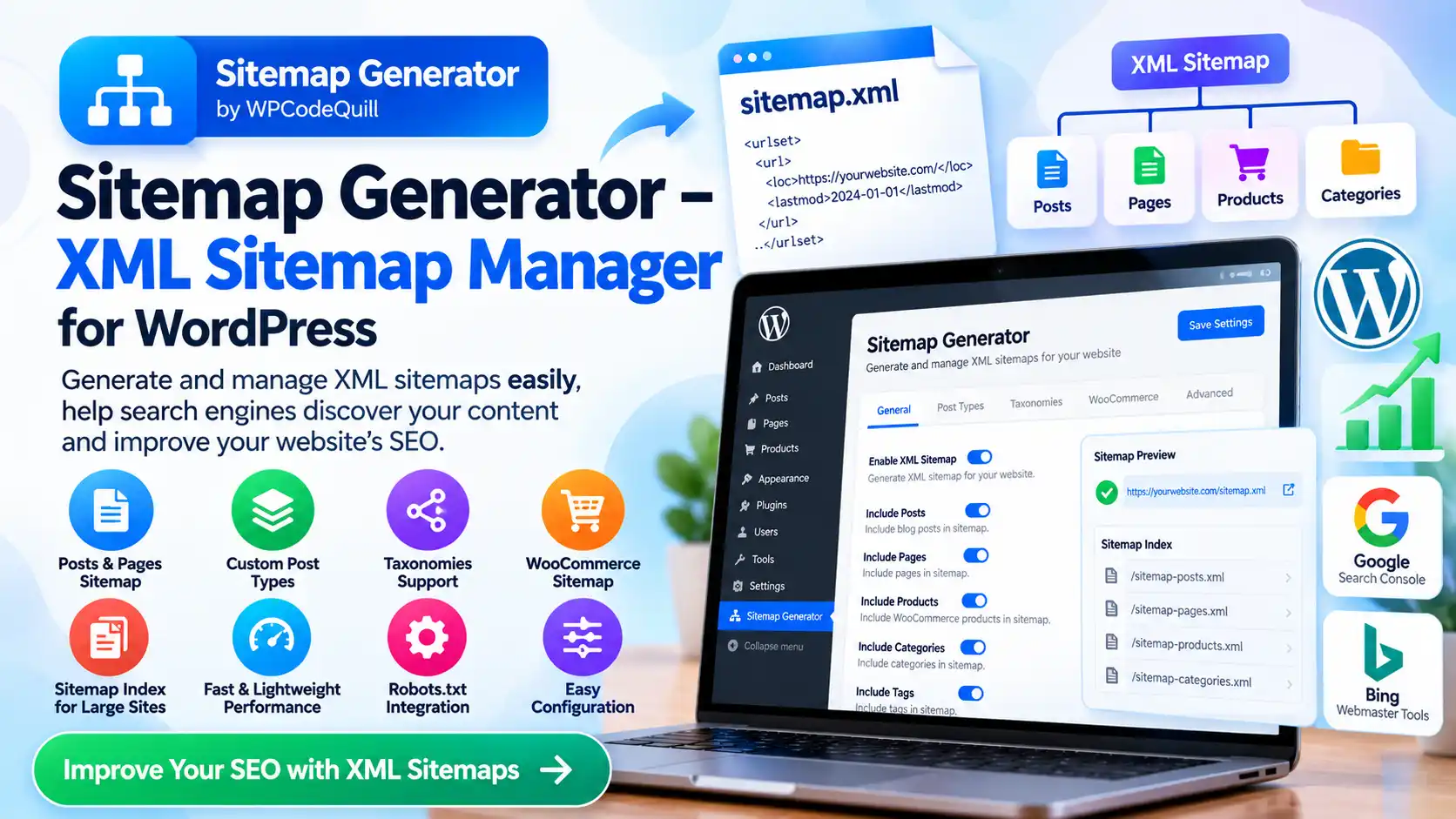
Sitemap Generator – XML Sitemap Manager for WordPress
A well-structured website needs more than good content and attractive design. Search engines also need reliable ways to discover the URLs that matter. For WordPress websites with growing numbers of posts, pages, products, categories, tags, and custom post types, managing those URLs can become increasingly important.
This is where a Sitemap Generator – XML Sitemap Manager can be useful. An XML sitemap provides search engines with a structured list of URLs that a website wants them to discover and consider for crawling. Google explains that sitemaps can help search engines discover pages and other resources, although submitting a sitemap does not guarantee that every URL will be crawled or indexed. Google Search Central's sitemap documentation explains how sitemaps fit into the crawling and indexing process.
For WordPress users, the challenge is not necessarily creating one XML file manually. The bigger challenge is maintaining it as the website changes. New posts are published, old pages are removed, products are added, categories change, and websites can grow from dozens of URLs to thousands or more.
WPCodeQuill Sitemap Generator – XML Sitemap Manager is designed around this type of WordPress sitemap management. Its current WordPress.org listing describes automatic sitemap generation for posts, pages, custom post types, and taxonomies, along with sitemap index support, WooCommerce compatibility, caching, robots.txt integration, and WordPress administration settings. The plugin was initially released as version 1.0.0 in September 2026. View the WPCodeQuill Sitemap Generator on WordPress.org.
This guide explains what XML sitemaps are, why they matter, how a WordPress sitemap generator works, how sitemap indexes handle larger sites, how to configure and test a sitemap, what a sitemap can and cannot do for SEO, common mistakes, and how to use an XML Sitemap Generator as part of a broader technical SEO strategy.
What Is an XML Sitemap?
An XML sitemap is a machine-readable file that provides search engines with information about URLs on a website.
Instead of expecting a crawler to discover every important URL only by following links from one page to another, a sitemap provides an additional discovery mechanism.
Google describes a sitemap as a file where website owners can provide information about pages, videos, and other files on their websites. Sitemaps can also provide information such as when content was last updated and, for supported sitemap types, additional information about media or localized versions. Google's official sitemap overview provides the current guidance.
A basic XML sitemap can look conceptually like this:
Sitemap URL: https://example.com/sitemap.xml
Inside the file, URLs are represented using XML elements such as <url> and <loc>.
The important point is that an XML sitemap is intended primarily for search-engine discovery and communication. It is not an HTML sitemap designed for ordinary visitors.
Why Do WordPress Websites Need an XML Sitemap?
Not every website technically needs a sitemap. Google states that smaller sites with comprehensive internal linking may not necessarily need one. However, sitemaps can be particularly useful for larger or more complex websites, newer sites with relatively few external links, and websites containing specialized content such as video, images, or news. Google Search Central provides these distinctions.
For many WordPress websites, having a properly maintained sitemap is still a practical technical SEO component.
Consider a website with:
- 500 blog posts.
- 50 pages.
- 1,000 WooCommerce products.
- Dozens of product categories.
- Custom post types.
- Multiple taxonomies.
Managing the sitemap manually would be inefficient. Every time content changes, the sitemap would potentially need to be updated.
An automated XML Sitemap Generator can reduce that maintenance burden by generating and updating sitemap resources from the WordPress database and configuration.
What Is a Sitemap Generator – XML Sitemap Manager?
A Sitemap Generator – XML Sitemap Manager is a WordPress tool that creates and manages XML sitemap files or sitemap endpoints for a website.
A basic generator may produce one sitemap containing URLs. A more advanced manager can provide additional controls such as:
- Post sitemap generation.
- Page sitemap generation.
- Custom post type support.
- Taxonomy sitemap generation.
- WooCommerce product support.
- Product category and tag support.
- Sitemap index generation.
- URL chunking.
- Caching.
- Robots.txt integration.
- WordPress dashboard settings.
The exact features depend on the plugin being used.
For example, the current WPCodeQuill Sitemap Generator – XML Sitemap Manager listing states that the plugin can generate standard XML sitemaps for posts, pages, custom post types, and taxonomies. It also describes sitemap index support, WooCommerce compatibility, transient-powered caching, robots.txt integration, and configurable WordPress admin settings.
How Does an XML Sitemap Generator Work?
The process can be simplified into several stages.
- The plugin reads relevant content from WordPress.
- It determines which configured content types should be included.
- It creates or updates sitemap data.
- If necessary, URLs are divided into multiple sitemap files.
- A sitemap index can reference those individual files.
- The sitemap becomes available at a public URL.
- Search engines can discover the sitemap through Search Console or robots.txt.
The advantage of automation is that you do not have to manually edit XML whenever you publish another article or add a product.
Google supports sitemap indexes for websites that need multiple sitemap files. Its current documentation states that a single sitemap is limited to 50,000 URLs or 50 MB uncompressed, and larger collections should be divided into multiple sitemap files, optionally using a sitemap index. Google's sitemap creation and submission documentation explains these limits.
What Is a Sitemap Index?
A sitemap index is a sitemap-like XML document that points to other sitemap files.
Imagine a large WordPress website containing:
- 15,000 blog posts.
- 8,000 products.
- 1,000 pages.
- Hundreds of categories and other taxonomies.
Instead of placing everything into one enormous sitemap, the website can organize URLs into several sitemap files.
For example:
post-sitemap.xmlpage-sitemap.xmlproduct-sitemap.xmlcategory-sitemap.xmlsitemap-index.xml
The index then references the individual sitemap files.
Google's documentation explains that sitemap index files can be used to submit multiple sitemaps at once and that the referenced sitemaps must follow the applicable sitemap requirements. A sitemap index can contain up to 50,000 sitemap locations. Google's sitemap index documentation provides the current details.
Why Sitemap Index Support Matters for WordPress
WordPress websites can grow unexpectedly.
A small blog might begin with 20 articles and eventually contain several thousand. An eCommerce store can have thousands of products. A directory website can generate many URLs through custom post types and taxonomies.
A sitemap manager that supports URL chunking and sitemap indexes can therefore be more practical for larger websites than a simplistic single-file generator.
The current WPCodeQuill plugin listing specifically describes automatic segmentation into chunked sitemaps and sitemap index support for larger websites. The plugin's WordPress.org page provides the current feature and compatibility information.
WPCodeQuill Sitemap Generator – XML Sitemap Manager
WPCodeQuill Sitemap Generator – XML Sitemap Manager is a WordPress plugin designed to provide automated XML sitemap management directly inside WordPress.
The current WordPress.org listing describes it as a lightweight XML sitemap manager focused on standards, performance, and local WordPress operation. It states that the plugin operates within the WordPress environment without external calls. See the official WordPress.org plugin listing.
Its listed features include:
- Automatic Sitemap Generation: Generates XML sitemaps for selected WordPress content.
- Posts and Pages: Supports common WordPress content types.
- Custom Post Types: Useful for websites using custom content structures.
- Taxonomies: Supports taxonomy-based sitemap generation.
- Sitemap Index Support: Helps organize larger collections of sitemap files.
- WooCommerce Compatibility: Supports products and product taxonomies when WooCommerce is installed.
- Transient-Powered Performance: Uses WordPress transient caching to reduce repeated sitemap-generation work.
- Robots.txt Integration: Supports making the sitemap discoverable through the site's robots.txt configuration.
- Admin Settings: Provides WordPress dashboard controls.
According to its current WordPress.org listing, the plugin requires WordPress 6.0 or higher and is tested up to WordPress 7.1.2. Its initial 1.0.0 release is dated September 21, 2026. These compatibility details can change, so check the official plugin page before installing or updating. Official plugin details and changelog.
Key Features to Look for in an XML Sitemap Generator
Automatic Generation
The first requirement is automation.
A useful sitemap plugin should reduce the need to manually regenerate an XML file every time website content changes.
When a new article is published, for example, the sitemap should be able to reflect the site's current URL inventory according to the plugin's configuration.
Post and Page Support
Most WordPress websites contain posts and pages, so these should be fundamental sitemap options.
However, not every post or page necessarily deserves to be included. A sitemap should represent URLs that you want search engines to discover and consider.
Custom Post Type Support
Custom post types are common in WordPress development.
A website might have:
- Products.
- Courses.
- Jobs.
- Properties.
- Movies.
- Reviews.
- Events.
- Documentation.
A sitemap manager that recognizes custom post types can be useful for these websites.
Taxonomy Support
Taxonomies organize WordPress content.
Depending on the site's SEO strategy, categories, product categories, tags, or custom taxonomies may be useful sitemap candidates.
However, adding every taxonomy URL automatically is not always the correct SEO strategy. The decision should be based on whether those URLs are useful, indexable pages rather than simply because they exist in WordPress.
WooCommerce Support
WooCommerce websites have a different URL structure from a basic blog.
Products and product taxonomies can represent significant portions of an eCommerce site's search inventory.
The WPCodeQuill plugin's current listing specifically states that WooCommerce products, product categories, and tags can be included when WooCommerce is installed. See the plugin documentation on WordPress.org.
Caching
Sitemap generation can involve database queries, URL collection, XML generation, and other processing.
For larger websites, caching can reduce unnecessary repeated work.
WPCodeQuill describes its sitemap manager as using WordPress transient caching with hook-based invalidation. This approach is intended to make sitemap rendering more efficient while still allowing changes to invalidate cached sitemap data.
Step-by-Step: How to Set Up an XML Sitemap in WordPress
Step 1: Review Your Existing Sitemap
Before installing another sitemap plugin, check whether your WordPress website already has an XML sitemap.
Many WordPress installations and SEO plugins can already generate sitemaps. Google specifically notes that modern CMS platforms such as WordPress may already provide sitemap functionality. Google Search Central.
Do not run multiple competing sitemap generators without understanding which sitemap is intended to be authoritative.
Step 2: Decide Which URLs Belong in Search
Create a basic inventory of your website.
- Posts.
- Pages.
- Products.
- Categories.
- Tags.
- Custom post types.
- Custom taxonomies.
Then decide which types contain valuable, indexable content.
Step 3: Install Your Sitemap Plugin
Install the chosen WordPress sitemap plugin through a trusted distribution source.
For WPCodeQuill's plugin, the official WordPress.org directory is the appropriate starting point: WPCodeQuill Sitemap Generator – XML Sitemap Manager.
Before making technical changes, maintain a recent backup of your website.
Step 4: Configure Content Types
Select the content types that should be represented by your sitemap system.
For example, a blog might need posts and pages. A WooCommerce store might also need products and selected product taxonomies.
Step 5: Check the Generated Sitemap
After configuration, open the generated sitemap URL in a browser.
You should receive valid XML or an appropriate sitemap index response rather than a WordPress error page, PHP warning, redirect loop, or HTML document.
Step 6: Test Individual Sitemap Files
If your website uses a sitemap index, test the index and the sitemap files it references.
Every referenced sitemap should be publicly accessible and return the expected XML response.
Step 7: Review robots.txt
Your robots.txt file can contain a fully qualified sitemap URL.
Google's current robots.txt documentation states that the Sitemap field can identify the location of a sitemap or sitemap index and that the value should be a fully qualified URL. See Google's robots.txt documentation.
Step 8: Submit the Sitemap in Google Search Console
Open Google Search Console for your verified website and use the Sitemaps report to submit the sitemap URL or sitemap index.
Google explains that submitting a sitemap is a discovery signal or hint; it does not guarantee that Google will crawl every URL or index every page. Google's official sitemap submission guidance.
Does an XML Sitemap Guarantee Google Indexing?
No.
This is one of the most important points to understand about sitemap plugins.
A sitemap helps search engines discover URLs. It does not force Google to index those URLs.
Google explicitly states that sitemap submission does not guarantee that URLs will be crawled or indexed. Google Search Central's sitemap documentation makes this distinction clear.
Suppose you publish 100 low-value pages and place all 100 URLs in your sitemap. The sitemap does not automatically make those pages worthy of search results.
Indexing depends on many other factors, including:
- Content quality.
- Search relevance.
- Canonicalization.
- Internal linking.
- Crawl accessibility.
- Robots directives.
- Duplicate content signals.
- Website quality.
- Technical accessibility.
- Google's own crawling and indexing systems.
This is why a sitemap should be treated as one component of technical SEO rather than an indexing guarantee.
XML Sitemap vs Robots.txt
Sitemaps and robots.txt serve different purposes.
| Feature | XML Sitemap | robots.txt |
|---|---|---|
| Primary purpose | Tell search engines about important URLs | Control crawler access to paths/resources |
| Lists URLs | Yes | Not normally |
| Controls crawling | No | Yes, through rules |
| Guarantees indexing | No | No |
| Can reference a sitemap | N/A | Yes |
Google specifically warns that robots.txt should not be used as the primary method for preventing a page from appearing in Google Search. A URL blocked by robots.txt may still be discovered and indexed as a URL without its content being crawled. For preventing indexing, Google recommends appropriate mechanisms such as noindex or authentication. Read Google's robots.txt guidance.
This distinction is important when troubleshooting indexing problems.
What URLs Should You Put in an XML Sitemap?
A good rule is to include URLs that you want search engines to discover and potentially show in search results.
For example, an article sitemap could contain:
- Published articles.
- Canonical article URLs.
- Publicly accessible pages.
It generally should not be treated as a dumping ground for every URL WordPress can generate.
Before including a URL, ask:
- Is this page useful to visitors?
- Is it publicly accessible?
- Is it intended to be indexed?
- Is it the canonical version?
- Does it return a normal successful response?
- Would I want this URL appearing in search results?
Google recommends including the URLs you want to appear in Search and using canonical URLs in sitemaps. Google's sitemap best-practice documentation explains this approach.
Sitemap Best Practices for WordPress SEO
Use Canonical URLs
Your sitemap should generally contain preferred canonical URLs rather than duplicate URL variants.
Google describes sitemap inclusion as one signal that can help communicate preferred canonical URLs, although Google ultimately makes its own canonicalization decisions. Google's canonicalization documentation.
Keep the Sitemap Current
An outdated sitemap can contain URLs that no longer exist or omit newly published content.
Automation is therefore particularly useful for active websites.
Do Not Include Broken URLs
A sitemap should not become a list of deleted, redirected, or broken URLs.
Regularly inspect sitemap output, especially after website migrations or large content cleanups.
Use Absolute URLs
Google's sitemap documentation specifies fully qualified absolute URLs rather than relative paths. See Google's sitemap format guidance.
Keep the Sitemap Accessible
Search engines must be able to request the sitemap. Avoid authentication requirements or accidental server rules that block crawler access.
Use a Sitemap Index for Large Sites
If the site exceeds sitemap size limits or naturally benefits from multiple sitemap files, use a sitemap index.
Submit It Through Search Console
Submitting the sitemap through Google Search Console gives you visibility into sitemap processing and potential errors.
Common Sitemap Problems
1. Multiple Sitemap Plugins
One common WordPress problem is installing multiple plugins that generate competing sitemap systems.
For example, WordPress core, an SEO plugin, and a dedicated sitemap plugin may all generate different sitemap endpoints.
This is not automatically wrong, but it can create confusion if you do not know which sitemap should be submitted and which URLs each system controls.
2. Sitemap Returns an HTML Page
An XML sitemap should return the appropriate XML output. If a sitemap URL returns a normal webpage, login screen, error page, or server error, investigate the problem.
3. URLs Are Blocked
If important pages are blocked by robots.txt, Google may not be able to crawl them properly.
4. Sitemap Contains Noindex URLs
Including URLs that are deliberately marked noindex can create conflicting signals.
Review your sitemap and indexing directives together.
5. Wrong Domain or Protocol
Make sure the sitemap uses the correct HTTPS domain and canonical URL format.
6. Stale Cache
Caching can improve performance, but an incorrectly configured cache may cause old sitemap content to remain available longer than expected.
7. Server Errors
Database failures, PHP errors, memory limitations, firewall rules, or hosting configuration problems can prevent a sitemap from being generated correctly.
For more advanced WordPress problems, WPCodeQuill provides WordPress development and website troubleshooting services, including custom plugin development, website migration, PHP development, and website problem fixing.
Sitemap Generator Performance and Caching
Generating a sitemap for 50 URLs is very different from generating one for tens of thousands of URLs.
A large site may require many database queries to collect URLs. If the sitemap is regenerated from scratch on every request, unnecessary server work can occur.
Caching can help by storing generated sitemap information for reuse.
The current WPCodeQuill plugin listing describes transient-powered performance and hook-based invalidation. This means the plugin is designed to reuse cached sitemap data while responding to relevant content changes.
Performance should still be tested on your own website because hosting resources, database size, plugins, themes, caching layers, and traffic patterns differ from site to site.
WooCommerce and XML Sitemaps
WooCommerce websites often contain substantially more URLs than ordinary blogs.
Products, product categories, product tags, pages, posts, and other content can all contribute to the site's URL inventory.
A WooCommerce sitemap strategy should therefore distinguish between useful indexable URLs and URLs that exist only for functionality.
The current WPCodeQuill sitemap plugin listing identifies WooCommerce support for products, product categories, and tags. See the current WordPress.org listing.
However, simply enabling every possible taxonomy is not necessarily a good SEO decision. Review whether each URL type provides meaningful content and search value.
XML Sitemaps and Google Search Console
Google Search Console is one of the most useful places to monitor sitemap processing.
After submitting your sitemap, look for:
- Whether Google successfully fetched it.
- Whether Google detected sitemap errors.
- Whether the sitemap contains the expected number of URLs.
- Whether the sitemap index references working sitemap files.
- Whether submitted URLs have broader indexing problems.
Remember that sitemap processing and page indexing are different things.
A sitemap can be successfully processed while some URLs remain unindexed.
Google's crawling documentation explains that pages may fail to appear in Search even after discovery or crawling if other factors, including content value and search relevance, do not support inclusion. Google's crawling troubleshooting guide.
Does a Sitemap Help New Websites?
It can.
Google identifies new websites with few external links as one situation where a sitemap may be useful because search engines may have fewer paths through which to discover the site's URLs. Google's sitemap overview.
However, a new website should not rely entirely on its sitemap.
Build useful internal links, publish valuable content, ensure pages are accessible, and establish a logical website structure.
The sitemap should complement those efforts.
Does an XML Sitemap Improve Rankings Directly?
A sitemap should not be considered a direct ranking shortcut.
Its primary value is helping search engines discover and understand the URL inventory of a website.
Google's documentation makes it clear that sitemap submission does not guarantee crawling or indexing. Therefore, publishing a sitemap should be viewed as part of technical SEO rather than a method for artificially increasing rankings.
If your pages have weak content, poor internal linking, technical errors, duplicate URLs, or insufficient relevance, simply adding them to a sitemap will not solve those problems.
Sitemap Generator vs Manually Creating an XML Sitemap
| Factor | Manual Sitemap | WordPress Sitemap Generator |
|---|---|---|
| Initial setup | Requires manual creation | Usually simpler |
| New posts | Manual update may be required | Can be automated |
| Large sites | More difficult to maintain | Can support automated chunking |
| Custom post types | Requires manual logic | Can be configured automatically |
| WooCommerce | Requires custom management | Can provide product support |
| Caching | Must be implemented manually | May be built into the plugin |
| Maintenance | Higher | Lower when properly configured |
For a developer comfortable with XML, PHP, and WordPress APIs, manually building a sitemap is possible. But for many website owners, an established WordPress plugin reduces maintenance work.
Common Sitemap Mistakes to Avoid
Putting Every URL in the Sitemap
More URLs are not automatically better. Focus on URLs that are useful, canonical, accessible, and intended for search.
Expecting Instant Indexing
Submitting a sitemap does not guarantee instant crawling or indexing.
Blocking the Sitemap
Check firewall, authentication, robots.txt, security plugins, and server configuration.
Using Relative URLs
Use fully qualified absolute URLs in XML sitemaps.
Forgetting Old URLs After a Migration
Website migrations can change URL structures. Your sitemap should reflect the current canonical URL structure after migration.
Ignoring Canonicalization
Do not assume that Google will accept every URL simply because it appears in the sitemap.
Using Multiple Conflicting Sitemap Systems
Know which plugin or WordPress component is generating your sitemap and disable unnecessary duplication where appropriate.
Best Practices for WPCodeQuill Sitemap Generator
If you are using WPCodeQuill Sitemap Generator – XML Sitemap Manager, start with a simple configuration and expand it based on your website structure.
- Install the plugin from a trusted source.
- Confirm your WordPress version meets the plugin's current requirements.
- Review existing sitemap functionality before enabling another generator.
- Select only useful content types.
- Enable WooCommerce content only when appropriate for your store.
- Check the generated sitemap URL.
- Check sitemap index files if your website uses them.
- Confirm robots.txt references the intended sitemap when appropriate.
- Submit the sitemap to Google Search Console.
- Monitor sitemap processing and indexing separately.
- Review the sitemap after major website changes.
For additional WordPress plugins and development resources, you can explore the WPCodeQuill free files and plugin collection. The broader WPCodeQuill WordPress plugins category can also be useful when evaluating other WordPress functionality.
Frequently Asked Questions
What is a Sitemap Generator – XML Sitemap Manager?
A Sitemap Generator – XML Sitemap Manager is a tool that creates and manages XML sitemaps for a website. In WordPress, it can automatically collect URLs from posts, pages, custom post types, taxonomies, products, and other configured content.
What is an XML Sitemap Generator?
An XML Sitemap Generator creates an XML document containing URLs that a website wants search engines to discover. Depending on the implementation, it may also create sitemap indexes, cache sitemap data, and integrate the sitemap with robots.txt.
Does WPCodeQuill Sitemap Generator work with WooCommerce?
Yes. The current WordPress.org listing states that the plugin supports WooCommerce products, product categories, and tags when WooCommerce is installed. Check the current plugin listing for compatibility details.
Does a sitemap guarantee Google indexing?
No. Google explicitly states that sitemap submission does not guarantee that URLs will be crawled or indexed. A sitemap primarily helps search engines discover URLs and provides additional information about the site's preferred URL inventory.
How many URLs can an XML sitemap contain?
Google's current documentation states that a single sitemap is limited to 50,000 URLs or 50 MB uncompressed. Larger collections should be divided into multiple sitemap files, which can be managed through a sitemap index. See Google's sitemap size requirements.
Should I include categories and tags in my sitemap?
Only when those taxonomy pages provide useful, indexable content and are intended to appear in search. Do not include taxonomy URLs simply because WordPress generates them.
Can a sitemap improve SEO?
A sitemap can support technical SEO by helping search engines discover URLs, especially on larger or more complex websites. However, it does not automatically improve rankings or guarantee indexing.
Can I submit a sitemap through Google Search Console?
Yes. Google Search Console provides a Sitemaps report where website owners can submit sitemap URLs or sitemap indexes and monitor processing information. Google also supports declaring sitemap locations through robots.txt. Google's sitemap submission documentation.
Conclusion
A Sitemap Generator – XML Sitemap Manager can simplify one of the more repetitive parts of WordPress technical SEO: keeping search-engine-facing sitemap information synchronized with the website's actual content.
An effective XML Sitemap Generator can be especially useful as a WordPress website grows. Posts, pages, products, custom post types, and taxonomies can create a large URL inventory that is difficult to maintain manually. Sitemap indexes and URL chunking can make the structure more manageable for larger websites.
WPCodeQuill Sitemap Generator – XML Sitemap Manager is designed specifically for this WordPress use case. Its current WordPress.org listing documents automatic XML sitemap generation, custom post type and taxonomy support, sitemap index functionality, WooCommerce support, transient-based caching, robots.txt integration, and WordPress administration settings. Visit the official WordPress.org plugin page.
At the same time, it is important to keep expectations realistic. A sitemap is not a ranking trick and it cannot force Google to index every URL. Google's own documentation describes a sitemap as a discovery aid and explicitly states that sitemap submission does not guarantee crawling or indexing.
The strongest approach is to combine a clean sitemap with high-quality content, logical internal linking, correct canonicalization, accessible pages, a sensible robots.txt configuration, reliable hosting, and ongoing technical SEO maintenance.
If your WordPress website is growing and you want a dedicated tool for managing its XML sitemap structure, an XML Sitemap Generator can reduce manual work while giving you a clearer technical foundation for search-engine discovery.
Useful Official Resources
- Google Search Central: Learn About Sitemaps
- Google Search Central: Build and Submit a Sitemap
- Google Search Central: Sitemap Index Files
- Google Search Central: robots.txt Introduction
- Google Search Central: Canonical URLs and Sitemaps
WPCodeQuill Plugin: WPCodeQuill Sitemap Generator – XML Sitemap Manager on WordPress.org





Discussion (0)
Join the Conversation
Please log in to post a comment.
Log In to Comment