
How to Improve WordPress Website Speed: A Practical Guide
A slow website can make even a well-designed WordPress site frustrating to use. Pages may take too long to appear, buttons may respond slowly, images may shift while loading, and visitors on mobile connections may abandon the page before it becomes usable.
If you are wondering how to improve WordPress website speed, the most important point is to avoid blindly installing optimization plugins or trying to achieve a perfect performance score. Start by measuring the site, identify the biggest bottleneck, make controlled changes, and then measure again.
Google's current guidance emphasizes overall page experience and helpful content rather than optimizing for a single score. Core Web Vitals are useful indicators of real-world user experience, but they are only one part of a successful website. Google's Core Web Vitals documentation recommends good results for Largest Contentful Paint (LCP), Interaction to Next Paint (INP), and Cumulative Layout Shift (CLS).
Click to Live Check
What Makes a WordPress Website Slow?
WordPress performance is influenced by several layers of a website rather than one setting.
- Web hosting and server response time
- Page caching configuration
- Large or unoptimized images
- Too many plugins or inefficient plugins
- Heavy themes and page builders
- Large JavaScript and CSS files
- Third-party scripts such as analytics, advertising, chat widgets, and social embeds
- Database queries and autoloaded options
- Missing browser or object caching
- Slow external APIs
- Unoptimized fonts and media
- Excessive dynamic functionality on pages that could otherwise be cached
WordPress itself identifies hosting, configuration, software versions, plugins, themes, images, caching, object caching, and database-related factors as important areas to consider when improving performance.
Step 1: Test Your Website Before Changing Anything
The first mistake many website owners make is changing several optimization settings before establishing a baseline.
Instead, test important pages first. Do not test only the homepage. Consider testing:
- Homepage
- A typical blog post
- A category or archive page
- A product page if you use WooCommerce
- A landing page
- A page containing forms or other dynamic functionality
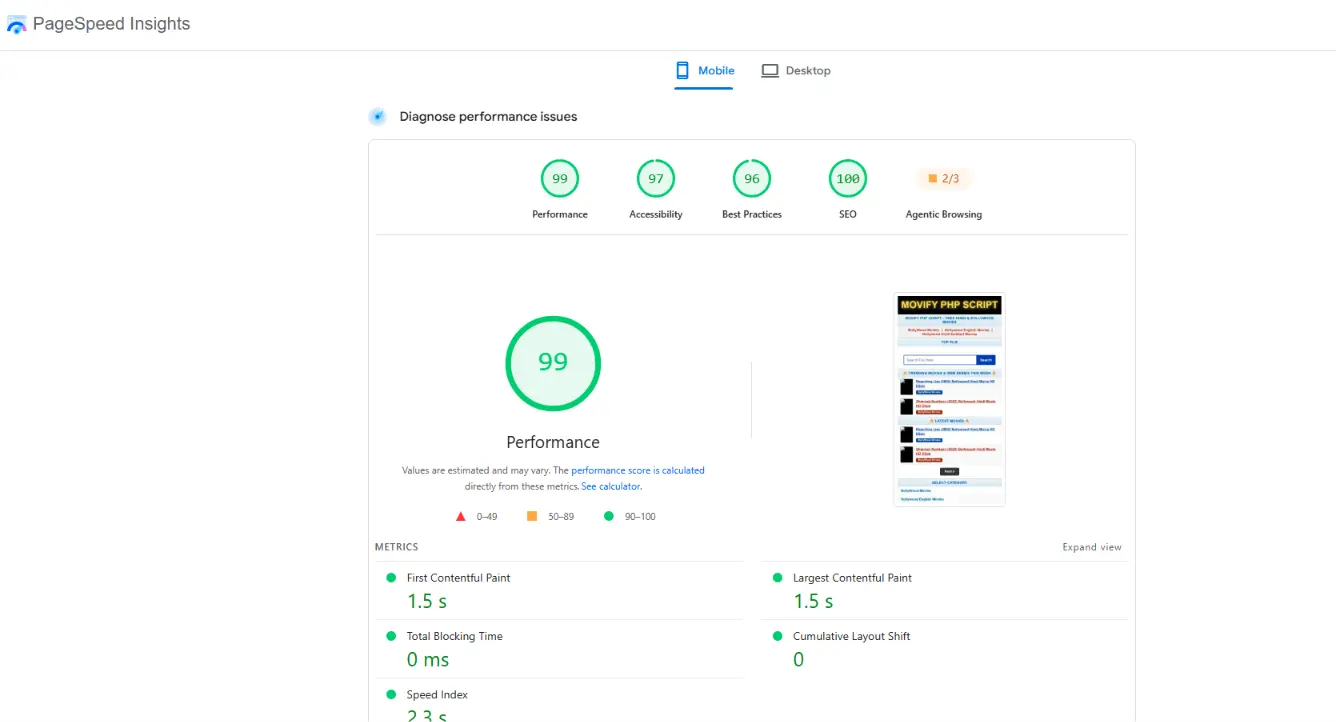
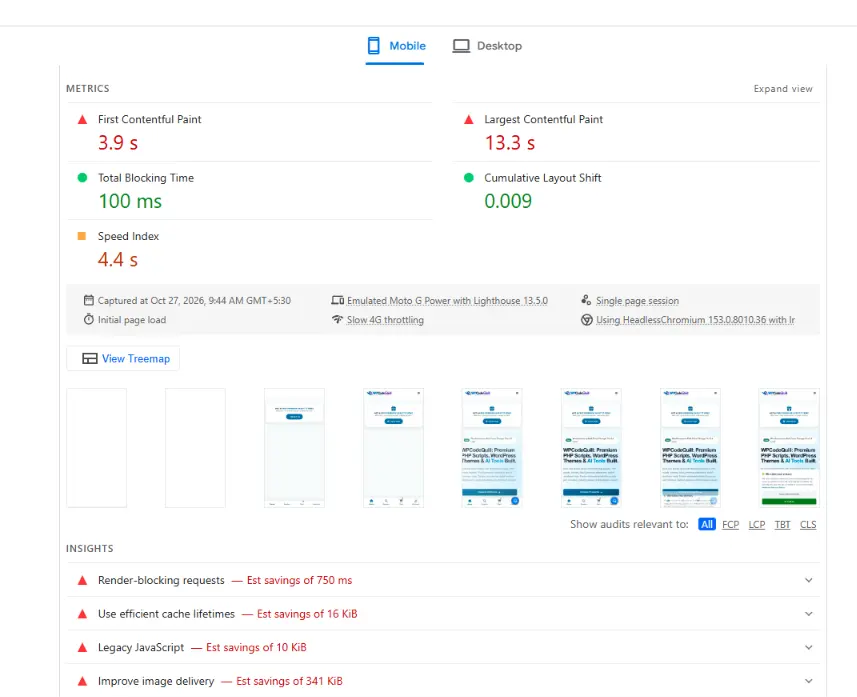
PageSpeed Insights is useful because it combines laboratory analysis with available real-user data. The field data represents actual user experiences, while lab data is useful for controlled debugging.
You can also use Lighthouse through Chrome DevTools. Lighthouse provides performance audits and recommendations that can help identify specific problems.
Record the important results before making changes. Then compare the same pages after optimization.
Step 2: Understand Core Web Vitals
Core Web Vitals help you understand three important aspects of user experience:
Largest Contentful Paint (LCP)
LCP measures loading performance. Google recommends aiming for an LCP of 2.5 seconds or less for a good experience.
A large hero image, slow server response, render-blocking resources, or excessive frontend work can delay the main content from appearing.
Interaction to Next Paint (INP)
INP measures how responsive a page is to user interactions. Google recommends an INP below 200 milliseconds for a good experience.
Heavy JavaScript is a common area to investigate when interactions feel sluggish.
Cumulative Layout Shift (CLS)
CLS measures visual instability. A good target is below 0.1.
For example, if an image loads without reserved dimensions and pushes the article text downward, the visitor experiences a layout shift.
These metrics are evaluated using real-world data where sufficient data exists, while laboratory tools can help diagnose individual pages.
Step 3: Optimize Your Images
Images are one of the easiest places to find unnecessary page weight.
Uploading a 5 MB camera image and displaying it at a small size does not make sense for most websites. Resize images to dimensions appropriate for the location where they will appear and compress them before delivery.
Practical image optimization tips
- Resize images before uploading when appropriate.
- Use modern formats such as WebP where suitable.
- Avoid uploading unnecessarily high-resolution images.
- Compress large images.
- Use responsive image sizes rather than sending the largest version to every device.
- Lazy-load images that are below the initial viewport when appropriate.
- Do not lazy-load the most important above-the-fold image if doing so unnecessarily delays LCP.
- Always reserve appropriate image dimensions to reduce layout shifts.
WordPress specifically recommends optimizing image files and considering modern formats such as WebP as part of performance optimization.
Step 4: Enable Page Caching
For many WordPress sites, page caching is one of the highest-impact optimizations.
Without page caching, WordPress may need to execute PHP, query the database, process plugins and themes, and generate the page for each request. A properly configured page cache can allow a cached HTML response to be served much more efficiently.
WordPress documentation describes caching as a major performance optimization and explains that caching plugins can generate static versions of pages for faster delivery.
However, caching should be configured carefully.
Pages containing personalized or highly dynamic information may need special treatment. Examples can include:
- Shopping carts
- Checkout pages
- Account dashboards
- Personalized user areas
- Some membership pages
- Pages showing real-time or user-specific information
Do not simply enable every caching option without testing the site afterward.
Step 5: Review Your WordPress Plugins
Having many plugins does not automatically mean that your website is slow. The more useful question is what those plugins actually do and what resources they load.
A single poorly optimized plugin can sometimes have a larger performance impact than several lightweight plugins.
Start by identifying plugins that:
- Load CSS or JavaScript globally
- Perform expensive database operations
- Make external API requests
- Add frontend tracking scripts
- Generate complex queries
- Provide functionality that is no longer needed
Deactivate and remove plugins that are genuinely unnecessary. WordPress's own optimization documentation recommends reviewing and removing unnecessary plugins and selectively disabling plugins when investigating performance problems.
Do not delete a plugin simply because a speed tool says it exists. Determine whether it is actually contributing to the problem.
Step 6: Use a Lightweight Theme
Your theme controls a large part of the frontend experience. A visually impressive theme can still introduce unnecessary CSS, JavaScript, animations, fonts, sliders, widgets, and other components.
When selecting or evaluating a theme, look beyond the demo.
Check:
- How much CSS and JavaScript it loads
- Whether unused features can be disabled
- How it handles responsive images
- Whether it loads external fonts
- Whether it depends heavily on page-builder components
- Whether the markup remains reasonably simple
A theme should be selected according to the site's actual requirements rather than the number of features included in its demo.
Step 7: Reduce Unnecessary JavaScript
JavaScript can make a website interactive, but excessive JavaScript can also increase the amount of work the browser needs to perform.
Review scripts from:
- Plugins
- The theme
- Page builders
- Analytics services
- Advertising platforms
- Chat widgets
- Social media embeds
- Marketing tools
Where possible, load a script only on the pages that actually require it.
For example, a booking plugin may not need to load its complete frontend JavaScript on a simple blog post. Similarly, a form plugin may not need to load every form-related asset on every page.
This type of conditional loading can reduce unnecessary frontend work, but it should be implemented carefully because removing a required dependency can break functionality.
Step 8: Optimize CSS
CSS contributes to page size and rendering work. Large stylesheets can become particularly noticeable on websites using multiple plugins, builders, or design frameworks.
Useful practices include:
- Remove genuinely unused CSS where practical.
- Avoid loading large plugin stylesheets on pages where they are unnecessary.
- Minify CSS where appropriate.
- Reduce duplicate styles.
- Avoid unnecessary animation and visual effects.
- Keep critical above-the-fold styling efficient.
Do not blindly remove CSS based only on a tool's unused-CSS recommendation. Some CSS may be required after user interaction, on responsive breakpoints, or on other templates.
Step 9: Improve Your Hosting Environment
Website optimization cannot compensate indefinitely for an unsuitable hosting environment.
If your server takes a long time to respond before the page can begin rendering, frontend optimization alone may not solve the underlying problem.
Check whether your hosting environment provides:
- A current supported PHP version
- OPcache or another opcode caching mechanism
- A suitable database configuration
- Reliable server resources
- Page caching where appropriate
- Persistent object caching where beneficial
- HTTPS
- A suitable server location for your audience
WordPress documentation notes that PHP versions and configuration affect performance and that opcode caching can improve PHP execution performance. WordPress Site Health can also report whether opcode caching is enabled.
If your site has grown significantly, compare its resource usage against what your hosting plan provides rather than assuming that installing another optimization plugin will solve everything.
Step 10: Use Browser and Object Caching Correctly
Page caching is only one layer of caching.
Browser caching allows static assets such as images, CSS, and JavaScript to be reused by visitors' browsers according to appropriate cache headers.
Object caching can reduce repeated trips to the database by storing frequently accessed objects and data.
WordPress documentation describes persistent object caching as a way to reduce database-related work and explains the role of browser caching in reducing repeated requests for unchanged resources.
For larger or database-heavy WordPress sites, object caching can become particularly useful. The correct setup depends on the hosting environment and application workload.
Step 11: Check Autoloaded WordPress Options
This is an area that many beginners overlook.
WordPress stores many plugin and theme settings in the database. Some options are marked for autoloading, meaning they are loaded as WordPress initializes.
If a website accumulates excessive autoloaded data, it can increase the amount of information WordPress needs to process on requests.
WordPress documentation currently recommends keeping the total size of autoloaded options under approximately 800 KB as a general guideline. The exact situation depends on the site's configuration, database, object cache, and WordPress version.
Do not manually delete database options simply because they look large. First identify which plugin created them and determine whether they are still required.
Developers can also control autoload behavior for options that are only required in specific circumstances. WordPress provides functions for changing option autoload behavior without necessarily changing the option's value.
Step 12: Reduce Third-Party Scripts
Third-party resources are frequently overlooked because they are not part of the WordPress installation itself.
Examples include:
- Advertising scripts
- Analytics
- Social media widgets
- Live chat
- Heatmaps
- Affiliate tracking
- External fonts
- Video embeds
Each external service can introduce network requests and browser work.
The solution is not necessarily to remove every third-party service. Instead, evaluate whether each one provides enough value to justify its performance cost.
For example, replacing an automatically loaded embedded video with a lightweight preview that loads the video only after interaction can reduce the initial workload.
Step 13: Optimize Fonts
Fonts affect both visual presentation and loading behavior.
Using many font families and weights can increase the number and size of resources that must be downloaded.
For a typical website, consider:
- Using fewer font families.
- Reducing unnecessary font weights.
- Using modern font formats.
- Preloading only genuinely critical font resources when appropriate.
- Using system fonts where they meet the design requirements.
Do not preload every font file. Preloading resources that are not actually critical can compete with more important resources.
Step 14: Review WordPress Site Health
WordPress includes a built-in Site Health system under Tools > Site Health.
It provides information about your WordPress configuration and identifies critical issues and recommended improvements.
Before making advanced performance changes, review Site Health for:
- PHP-related issues
- Plugin and theme problems
- WordPress update status
- REST API problems
- Loopback issues
- Server configuration information
- Persistent object cache information
- Other recommended improvements
This can help identify an underlying configuration problem before you start modifying advanced optimization settings.
Step 15: Consider a CDN
A Content Delivery Network, or CDN, can serve eligible static resources from infrastructure closer to visitors and can reduce the distance between users and cached resources.
A CDN can be especially useful for websites with visitors distributed across different geographic regions.
However, a CDN is not a replacement for fixing a badly optimized website. If the origin server is slow, the database is overloaded, or the page contains excessive JavaScript, putting a CDN in front of the site does not automatically solve every problem.
Think of CDN delivery as one layer of a larger performance architecture.
Step 16: Be Careful With WordPress Speed Plugins
Performance plugins can simplify optimization, but installing several plugins that perform overlapping jobs can create configuration conflicts.
For example, using multiple systems to minify CSS, multiple page caches, or several plugins that modify lazy loading can make debugging more difficult.
A better approach is to choose a coherent optimization strategy.
After activating or changing a performance plugin:
- Clear existing caches.
- Test the homepage.
- Test important internal pages.
- Test forms.
- Test login and account areas.
- Test WooCommerce cart and checkout if applicable.
- Check mobile rendering.
- Run performance tests again.
Never assume that a setting labeled "aggressive optimization" is automatically appropriate for every WordPress website.
Step 17: Do Not Chase a Perfect PageSpeed Score
A common misconception is that every website needs a perfect 100/100 PageSpeed score.
That is not the right goal.
PageSpeed Insights uses Lighthouse for laboratory analysis and also provides real-user data when available. Lab and field results can differ because they represent different testing conditions.
Google also explains that good Core Web Vitals do not guarantee top search rankings. Search systems consider many signals, and relevance and content quality remain important.
The better goal is to provide a fast, stable, responsive experience for your actual visitors.
A Practical WordPress Speed Optimization Checklist
Use this checklist when working through a slow website:
- Test important pages before making changes.
- Check Core Web Vitals.
- Review PageSpeed Insights field and lab data.
- Review WordPress Site Health.
- Enable appropriate page caching.
- Optimize large images.
- Use modern image formats where appropriate.
- Review unnecessary plugins.
- Check whether plugins load assets globally.
- Review your theme's frontend assets.
- Reduce unnecessary JavaScript.
- Optimize CSS.
- Review third-party scripts.
- Check hosting and server response time.
- Ensure suitable PHP and opcode caching configuration.
- Consider object caching for database-heavy sites.
- Review excessive autoloaded options.
- Optimize fonts.
- Consider CDN delivery when appropriate.
- Test dynamic pages after caching changes.
- Make one major change at a time.
- Measure again after optimization.
Common WordPress Speed Optimization Mistakes
Installing too many optimization plugins
More optimization plugins do not necessarily mean more speed. Overlapping functionality can create conflicts and make troubleshooting harder.
Deleting plugins based only on their number
The number of plugins is not a complete performance measurement. What matters is what each plugin does and how much work it creates.
Optimizing only the homepage
A website can have a fast homepage but slow product pages, articles, search results, or checkout pages.
Ignoring mobile visitors
A page that feels fast on a powerful desktop computer may feel very different on a mobile device or slower network.
Changing everything at once
If you enable ten optimization features simultaneously and the website becomes faster—or breaks—you may not know which change caused the result.
Chrome's Lighthouse documentation recommends establishing a baseline and making changes that can be evaluated individually.
Assuming a high score means the website is perfect
A performance score is a diagnostic indicator, not a complete definition of website quality.
How to Improve WordPress Website Speed Step by Step
If you want a simple order of operations, use this sequence:
- Measure: Run PageSpeed Insights and Lighthouse tests.
- Check real-user data: Look at Core Web Vitals when field data is available.
- Find the largest bottleneck: Determine whether the problem is server response, images, JavaScript, CSS, caching, or database work.
- Fix the biggest problem first: Avoid spending an hour optimizing something that has almost no impact.
- Clear caches: Make sure you're testing the new version of the page.
- Test again: Compare the same page and conditions where possible.
- Check functionality: Make sure forms, menus, carts, login systems, and other interactive features still work.
- Monitor: Continue watching real-world performance rather than treating optimization as a one-time task.
Final Thoughts
Learning how to improve WordPress website speed is less about finding one magic plugin and more about understanding where the time is being spent.
Start with measurement. Check real-user data when available, inspect the biggest bottlenecks, optimize images, configure caching, review plugins and themes, reduce unnecessary JavaScript and third-party resources, maintain a healthy hosting environment, and investigate database issues when the evidence points there.
Most importantly, optimize for your visitors rather than a number on a testing website. A fast website should also remain functional, accessible, stable, secure, and easy to use.
If you are comparing WordPress tools, themes, plugins, or other website-development resources, you can explore the WPCodeQuill product marketplace and evaluate each product based on its documented features, compatibility, requirements, and suitability for your specific project.
Performance optimization is an ongoing process: measure → diagnose → change → test → monitor. That approach is more reliable than blindly applying every speed trick you find online.
Frequently Asked Questions
Q: How can I improve WordPress website speed without changing my theme?
Start with image optimization, page caching, browser caching, plugin analysis, third-party script reduction, database review, and hosting/server improvements. These changes can improve performance without requiring a complete redesign.
Q: Does having many WordPress plugins make a website slow?
Not necessarily. Plugin count alone is not a reliable measure of performance. A better approach is to identify plugins that perform expensive database operations, load unnecessary assets, make external requests, or add substantial frontend JavaScript.
Q: What is a good Core Web Vitals target?
Google's current recommended "good" thresholds are LCP of 2.5 seconds or less, INP below 200 milliseconds, and CLS below 0.1.
Q: Should I install a caching plugin?
For many WordPress websites, appropriate caching can provide significant benefits. WordPress documentation describes caching as an important performance optimization. The correct configuration depends on the site's hosting environment and whether pages contain dynamic or personalized content.
Q: Can a faster hosting plan make WordPress faster?
It can help when the existing hosting environment is a bottleneck, but hosting alone does not fix large images, excessive JavaScript, inefficient plugins, or poor caching. Performance should be evaluated as a complete system.
Q: Does a 100 PageSpeed score improve Google rankings?
No guarantee exists. Google recommends good page experience and Core Web Vitals, but a perfect laboratory score is not a guarantee of higher rankings. Search ranking systems consider many factors, including relevance and content quality.
Q: Should I optimize my database?
Database optimization can help when database queries, autoloaded options, or accumulated data are actually contributing to the problem. Avoid deleting database records blindly. Identify the source and understand what the data does before removing or changing it.
Q: How often should I test WordPress website speed?
Test after major changes such as installing a new plugin, changing themes, adding large media, modifying caching, or changing hosting. For established websites, periodically reviewing real-user performance is more useful than repeatedly chasing a laboratory score.






Discussion (0)
Join the Conversation
Please log in to post a comment.
Log In to Comment