
How to Install a WordPress Plugin (Step-by-Step Guide)
WordPress plugins make it possible to add new features to your website without building everything from scratch. You can use plugins to improve search engine optimization, create contact forms, protect your website, optimize images, add eCommerce features, and much more.
If you are new to WordPress, you may be wondering how to install a WordPress plugin correctly. The process is usually straightforward, and you do not need coding knowledge for the standard installation methods.
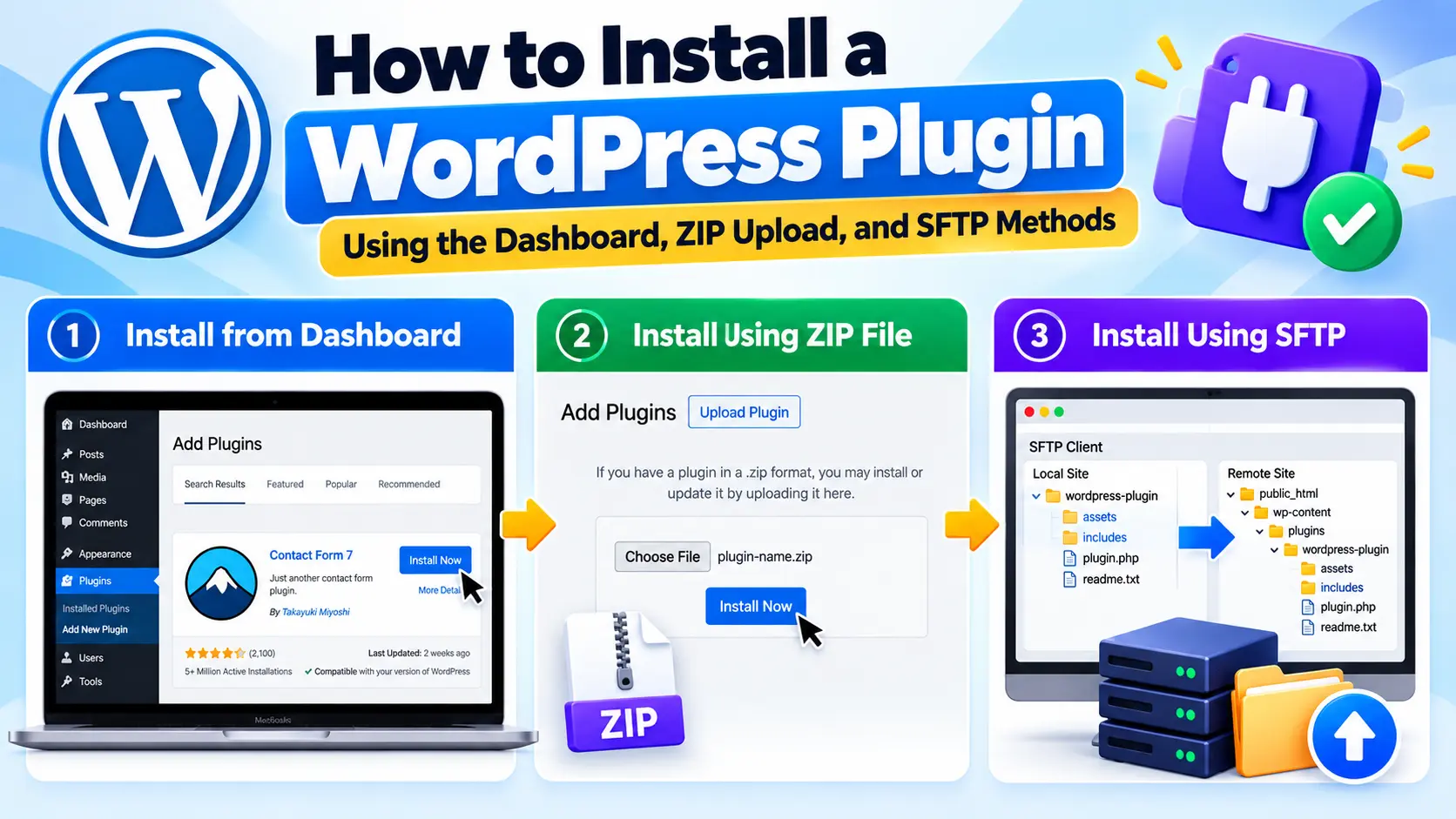
In this beginner-friendly guide, you will learn how to install plugins from the WordPress dashboard, upload a plugin ZIP file, and install a plugin manually using SFTP. You will also learn how to activate plugins and troubleshoot common installation problems.
What Is a WordPress Plugin?
A WordPress plugin is a software package that adds or extends functionality on a WordPress website. Plugins can provide features that are not included in a standard WordPress installation.
For example, you can install plugins to:
- Improve your website's SEO.
- Create contact forms and feedback forms.
- Add online store functionality with WooCommerce.
- Improve website security.
- Optimize images and website performance.
- Create backups and restore website data.
- Add membership, subscription, or content restriction features.
- Connect your website with third-party services.
You can find free plugins in the official WordPress Plugin Directory. You can also obtain premium plugins directly from their developers or authorized marketplaces.
Before Installing a WordPress Plugin
Before installing a new plugin, take a few minutes to check whether it is suitable for your website. Installing an unsuitable or unreliable plugin can cause compatibility problems, errors, or security risks.
1. Check the plugin source
Download plugins from the official WordPress Plugin Directory or the plugin developer's legitimate website. Avoid modified, pirated, or nulled plugin packages because they may contain malicious code or unauthorized changes.
2. Review compatibility
Check the plugin's supported WordPress version, PHP requirements, and compatibility information. If the developer provides installation instructions, read them before proceeding.
3. Check the plugin's maintenance history
For plugins listed in the WordPress Plugin Directory, review the last updated date, support information, ratings, and compatibility notices. A plugin that has not been updated recently is not automatically unsafe, but its compatibility and maintenance status deserve closer attention.
4. Create a website backup
Back up your WordPress files and database before installing a plugin, particularly on an important business website. A recent backup gives you a recovery option if the installation causes problems.
5. Confirm your access permissions
You generally need an administrator account on a standard WordPress installation to install plugins. On a WordPress multisite network, plugin installation is normally managed by a Super Admin. Hosting restrictions or custom security settings may also limit plugin installation.
Method 1: Install a WordPress Plugin from the Dashboard
This is the easiest method for installing plugins available in the official WordPress Plugin Directory. You can search for a plugin and install it directly from your WordPress admin dashboard.
Step 1: Log in to your WordPress dashboard
Open your website's WordPress login page. A common login address is:
https://yourdomain.com/wp-admin/
Replace yourdomain.com with your actual website domain. Enter your administrator username and password to access the dashboard.
Step 2: Open the Add Plugins page
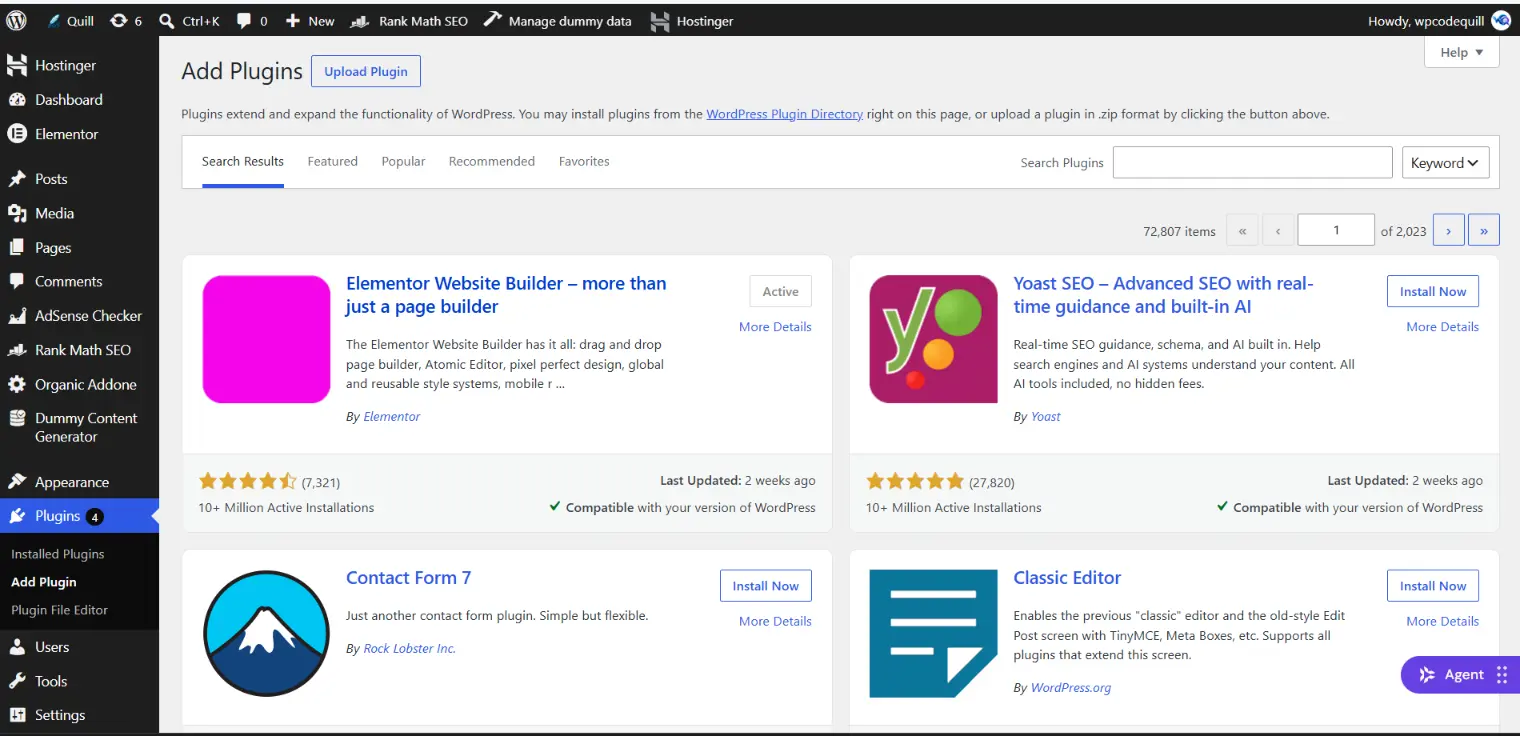
From the left-hand dashboard menu, navigate to:
Plugins → Add New Plugin
Depending on your WordPress version or dashboard configuration, the menu may be labelled Add New or Add Plugin.
Step 3: Search for the plugin
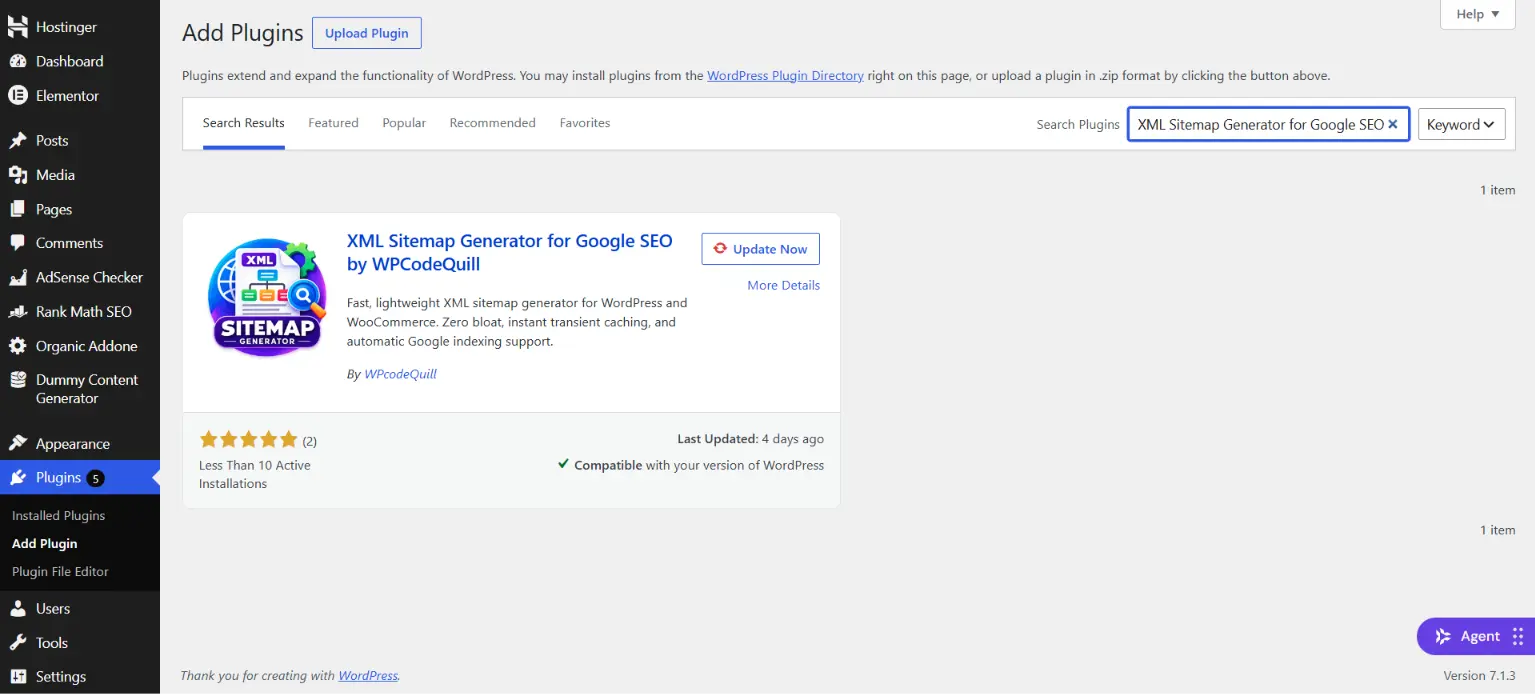
Use the search box to enter the plugin name or a feature you need. For example, search for a contact form plugin if you want to add a contact form to your website.
Review the available results and open the plugin details to check its description, features, compatibility information, and support details.
Step 4: Click Install Now
Once you have selected the appropriate plugin, click the Install Now button beside it.
WordPress will download and install the plugin automatically. Wait until the installation process finishes.
Step 5: Activate the plugin
After installation, click Activate or Activate Plugin, depending on the dashboard interface.
Your plugin is now activated. Some plugins may require additional configuration before their features become available on your website.
Method 2: Install a WordPress Plugin Using a ZIP File
This method is useful when you purchase a premium plugin or download a plugin ZIP package from a developer's website. It is also useful for installing plugins that are not listed in the WordPress Plugin Directory.
Before starting, make sure you have the original plugin ZIP file saved on your computer. In most cases, you should upload the ZIP file without extracting it.
Step 1: Download the plugin ZIP file
Download the plugin package from its official developer or authorized source. If you receive a ZIP file after purchasing a plugin, save it somewhere you can easily locate, such as your Downloads folder.
Check the package documentation to confirm that the downloaded ZIP file is the actual installable plugin package. Some developers provide a larger package containing documentation, licensing information, and the installable ZIP file inside it.
Step 2: Open Plugins in your dashboard
Log in to your WordPress dashboard and navigate to:
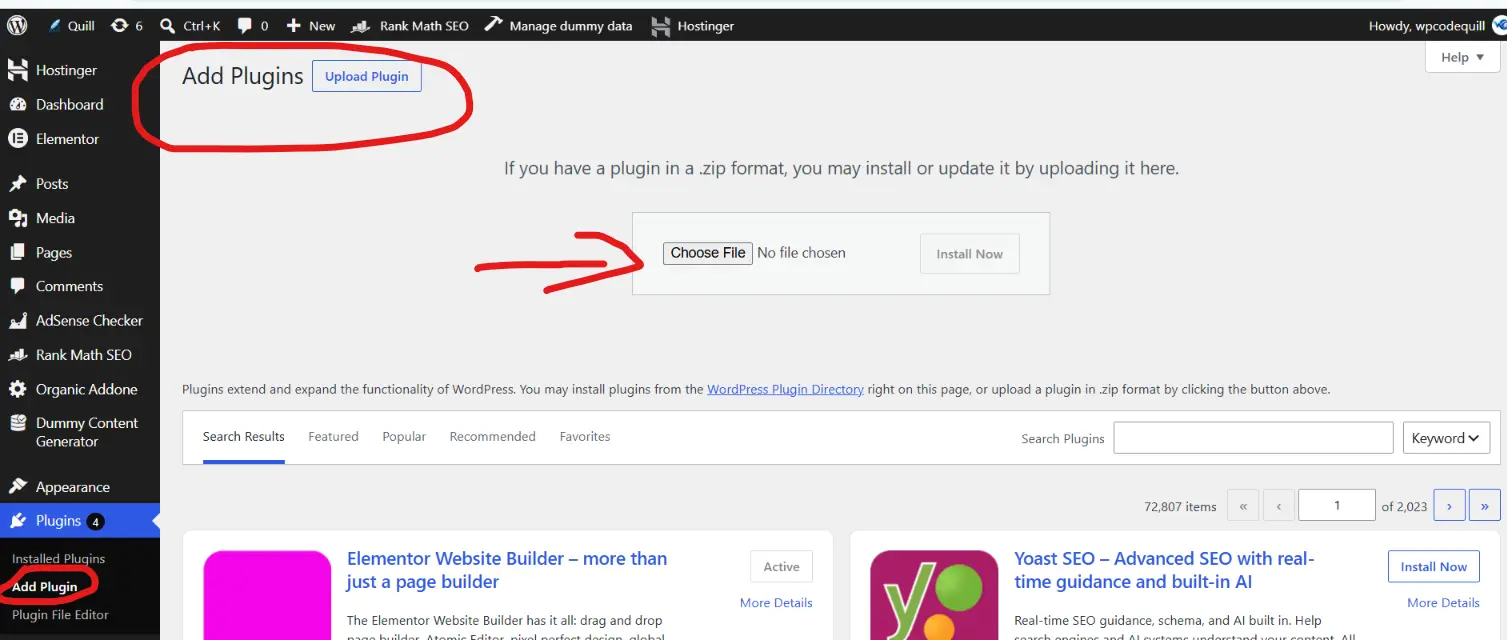
Plugins → Add New Plugin → Upload Plugin
Step 3: Choose the ZIP file
Click Choose File and select the plugin ZIP file from your computer.
Do not extract the ZIP file before uploading it through the standard WordPress plugin uploader.
Step 4: Install the plugin
After selecting the file, click Install Now. WordPress will upload the ZIP package, extract its contents, and install the plugin.
Wait for the installation confirmation message. Upload time depends on your internet connection, server resources, and the size of the plugin package.
Step 5: Activate the plugin
When WordPress displays the successful installation message, click Activate Plugin.
Alternatively, open Plugins → Installed Plugins, find the plugin, and click Activate.
The plugin is now active. Follow its documentation or setup instructions if it requires additional configuration.
Method 3: Install a WordPress Plugin Using FTP or SFTP
If the WordPress dashboard uploader is unavailable or you need to transfer plugin files directly to your server, you can use an FTP or SFTP client. This method is more suitable for users who are comfortable managing website files.
SFTP is preferable when available because it provides an encrypted connection for file transfers.
Step 1: Download and extract the plugin
Download the plugin ZIP file from its official source and extract it on your computer.
You should normally see a plugin folder containing the main PHP file and other required files or directories.
Step 2: Connect to your website server
Open an FTP or SFTP client, such as FileZilla, and connect using the server credentials supplied by your hosting provider.
You may need the following details:
- Server hostname.
- Username.
- Password or SSH authentication method.
- Port number.
Use the connection method and credentials provided by your hosting company. Do not share your server login details with untrusted people.
Step 3: Open the WordPress plugins directory
Navigate to your WordPress installation directory and open:
wp-content/plugins/This is the standard directory where regular WordPress plugins are stored.
Step 4: Upload the extracted plugin folder
Upload the complete extracted plugin folder into the wp-content/plugins/ directory.
Make sure the plugin's main PHP file is located inside the correct plugin folder. Avoid accidentally uploading an extra outer folder that prevents WordPress from detecting the plugin.
Step 5: Activate the plugin from WordPress
Return to your WordPress dashboard and navigate to:
Plugins → Installed Plugins
Find the plugin you uploaded and click Activate.
If the plugin does not appear, check the uploaded folder structure and confirm that the required plugin files are present.
How to Check Whether a WordPress Plugin Is Installed Successfully
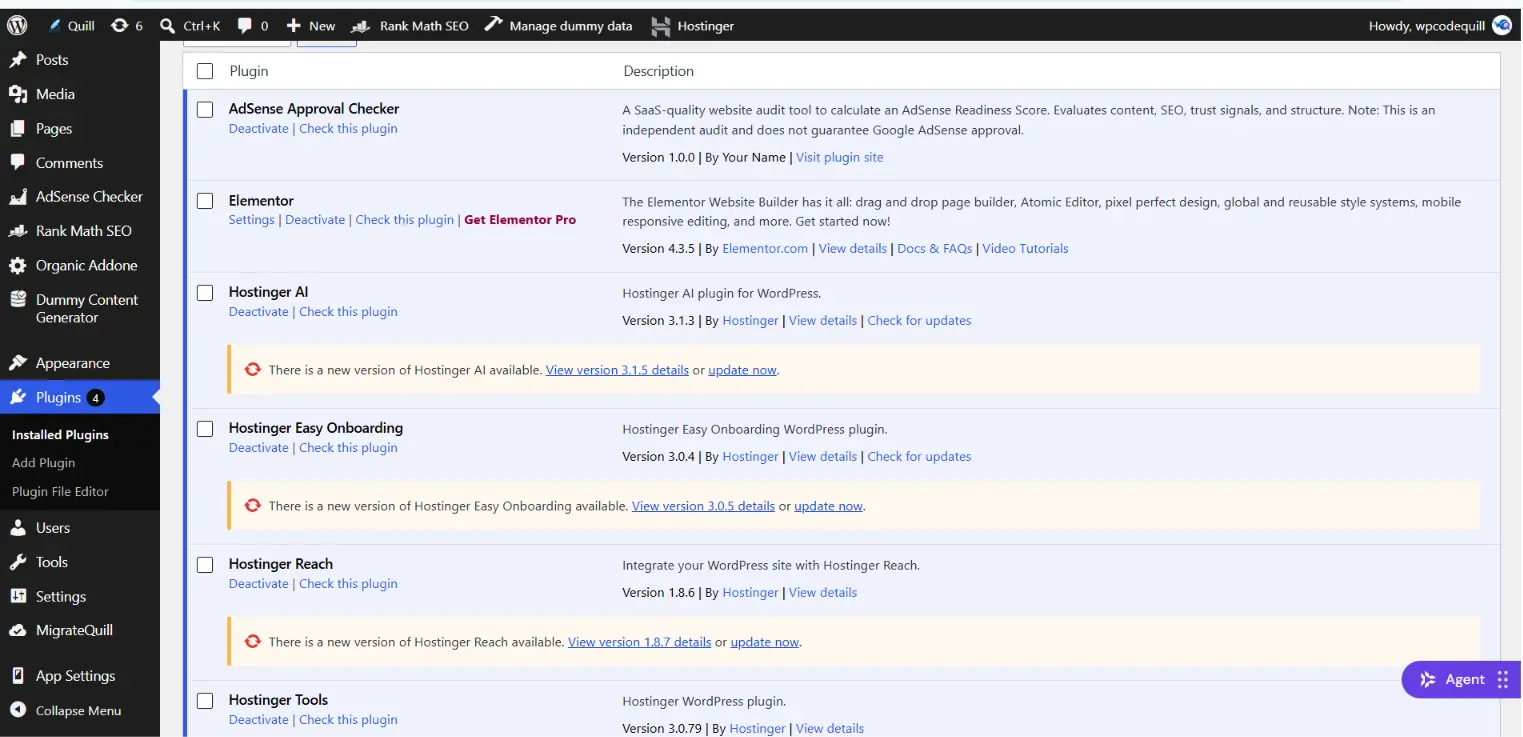
After installing a plugin, you can confirm its status from the WordPress dashboard.
- Log in to your WordPress dashboard.
- Open Plugins → Installed Plugins.
- Find the plugin name in the list.
- Check whether it is marked as active.
- Open the plugin's settings page if additional configuration is required.
Remember that installing a plugin and activating it are different actions. An installed but inactive plugin will not normally provide its regular functionality on your website.
Common WordPress Plugin Installation Problems and Solutions
Sometimes a plugin installation fails because of upload restrictions, server configuration, file structure problems, or compatibility issues. Here are some common problems and practical ways to investigate them.
1. The uploaded file exceeds the maximum upload size
Problem: WordPress displays an error indicating that the uploaded file exceeds the maximum upload size allowed by the server.
Solution: Check the PHP upload limits configured by your hosting provider. Depending on your hosting environment, you may need to adjust upload_max_filesize and post_max_size, or ask your hosting support team to help. The limits may also be controlled by the hosting platform.
2. The plugin ZIP file is invalid
Problem: WordPress reports that the package could not be installed or that no valid plugins were found.
Solution: Download the package again from the official source. Check whether the ZIP contains the actual installable plugin folder and a valid main plugin PHP file. Some commercial downloads include documentation or other files in an outer ZIP package.
3. Destination folder already exists
Problem: WordPress cannot install the plugin because a folder with the same name already exists.
Solution: Check the Installed Plugins page first. If an earlier version is present, review the plugin developer's update instructions. Back up your website before replacing or removing plugin files. Do not delete an existing plugin folder blindly because it may contain important configuration or data.
4. WordPress asks for FTP credentials
Problem: WordPress asks for FTP or connection details during plugin installation.
Solution: This can happen when WordPress cannot write to the required directories using the current server configuration. Contact your hosting provider to review file ownership, permissions, and the server's filesystem configuration. Avoid using overly permissive settings such as 777 as a quick fix.
5. The plugin does not appear in the dashboard
Problem: You uploaded a plugin using FTP or SFTP, but it is missing from the Installed Plugins page.
Solution: Check that the plugin folder is inside wp-content/plugins/ and that the main PHP file has a valid WordPress plugin header. Also confirm that the files were uploaded completely.
6. A critical error appears after activation
Problem: Your website displays a critical error or stops working after activating a plugin.
Solution: If you can still access the dashboard, deactivate the plugin that caused the issue. If you cannot access the dashboard, use your hosting file manager or SFTP to temporarily rename the plugin's directory. This can deactivate the plugin and help you regain access.
Check your website's error logs and the plugin's documentation to identify the underlying cause. If the issue continues, contact the plugin developer or hosting provider. Restore from a backup if necessary.
How to Choose the Right WordPress Plugin
Installing a plugin is easy, but choosing the right one requires more care. A useful plugin should solve a real problem without creating unnecessary maintenance or compatibility issues.
Consider these points before choosing:
- Purpose: Make sure the plugin provides the functionality you actually need.
- Developer reputation: Check the developer's website, documentation, and support channels.
- Compatibility: Review the supported WordPress and PHP versions.
- Maintenance: Look for a reasonable update history and signs of ongoing support.
- Security: Obtain the plugin from a trustworthy source and keep it updated.
- Performance: Avoid installing multiple plugins that perform the same task unnecessarily.
- Pricing and licensing: Understand whether the plugin is free, paid, subscription-based, or subject to a site limit.
If you are comparing premium WordPress extensions, you can explore the WPCodeQuill WordPress plugins collection. Review each product's description, requirements, documentation, and licensing terms before purchasing.
Best Practices After Installing a Plugin
Installing a plugin is only the first step. Follow these practices to keep your website easier to maintain:
- Configure the plugin according to its official documentation.
- Keep WordPress, plugins, and themes updated.
- Remove plugins that you no longer use, after checking whether they retain data you need.
- Maintain regular website backups.
- Monitor your website after installing or updating important plugins.
- Use only the permissions and features necessary for your website.
- Test major changes on a staging website when possible.
Do not install plugins simply because they are popular or advertised as essential. Choose extensions based on your website's actual requirements.
Conclusion
Learning how to install a WordPress plugin is an important skill for anyone managing a WordPress website. You can install plugins directly from the dashboard, upload a ZIP package, or transfer plugin files through SFTP.
For most beginners, the dashboard installation method is the simplest option. Use ZIP uploads for premium or externally downloaded plugins, and use SFTP when direct file transfer is necessary.
Before installing any plugin, check its source, compatibility, documentation, and maintenance history. Keep a recent backup of your website, activate only the plugins you need, and update them responsibly.
By following these steps, you can add useful functionality to your WordPress website while making more informed decisions about security, compatibility, and maintenance.
Important Links
Frequently Asked Questions
Q: Can I install a WordPress plugin without coding?
Yes. You can install most plugins through the WordPress dashboard without writing code. Search for a plugin, click Install Now, and activate it. You can also upload a plugin ZIP file through the dashboard.
Q: How do I install a WordPress plugin manually?
Download the plugin ZIP file, extract it, and upload the complete plugin folder to wp-content/plugins/ using SFTP or a hosting file manager. Then open Plugins → Installed Plugins in your dashboard and activate it.
Q: Can I install a plugin using a ZIP file?
Yes. Open Plugins → Add New Plugin → Upload Plugin, select the plugin ZIP file, and click Install Now. After installation, click Activate Plugin.
Q: Why can't I see the Add New Plugin option?
You may not have sufficient user permissions, your website may be part of a multisite network where only a Super Admin can install plugins, or your hosting provider or site configuration may restrict plugin installation. Check your account permissions and hosting settings.
Q: Can I install multiple plugins on WordPress?
Yes. WordPress supports installing multiple plugins. However, install only the plugins you need and check for overlapping functionality, compatibility, and performance issues.
Q: Do I need to activate a plugin after installing it?
Usually, yes. A newly installed plugin is generally inactive until you click Activate or Activate Plugin. Some installation or deployment workflows may behave differently, but the standard dashboard process requires activation.
Q: Is it safe to install plugins from third-party websites?
It can be safe when the plugin comes from a legitimate, trustworthy developer and its files have not been modified. Check the source, documentation, compatibility, update history, and licensing terms. Avoid nulled or pirated plugins.
Q: How do I uninstall a WordPress plugin?
Open Plugins → Installed Plugins, deactivate the plugin, and then click Delete. Before deleting it, check whether it stores settings or content that you may need later. Some plugins retain database data after removal.



Discussion (0)
Join the Conversation
Please log in to post a comment.
Log In to Comment